

Use it to audit the office you have, plan the next budget, or brief a vendor. Every item says what it solves, what to look for and how urgent it is. Last verified: October 2026.
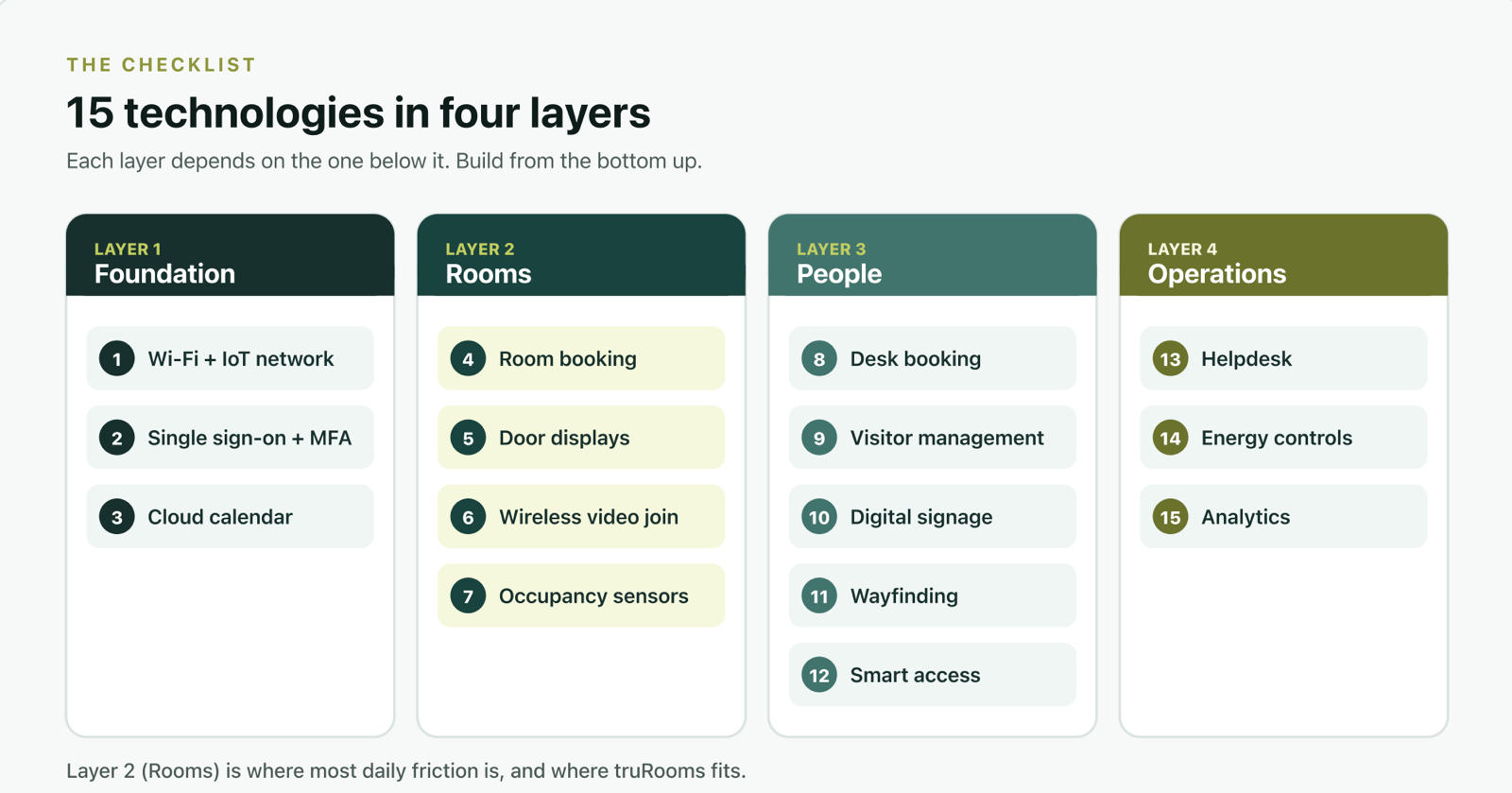
The checklist at a glance
| # | Technology | Layer | Priority |
|---|---|---|---|
| 1 | Reliable Wi-Fi and a separate IoT network | Foundation | Must have |
| 2 | Single sign-on and multi-factor authentication | Foundation | Must have |
| 3 | Cloud calendar and collaboration suite | Foundation | Must have |
| 4 | Meeting room booking inside the calendar | Rooms | Must have |
| 5 | Room displays at every door | Rooms | Must have |
| 6 | Wireless video join and screen sharing | Rooms | Should have |
| 7 | Occupancy sensors and automatic room release | Rooms | Should have |
| 8 | Desk booking with desk-level display | People | Should have |
| 9 | Visitor management | People | Should have |
| 10 | Digital signage from one CMS | People | Should have |
| 11 | Floor status screens and wayfinding | People | Nice to have |
| 12 | Smart access control | People | Should have |
| 13 | Workplace helpdesk and ticketing | Operations | Should have |
| 14 | Energy, lighting and HVAC controls | Operations | Nice to have |
| 15 | Workplace analytics dashboard | Operations | Should have |
What makes an office smart?
- It answers simple questions without a person. Is this room free? Where is my desk? Has my guest arrived?
- It works with the tools people already use. Booking happens in Outlook, Teams or Google Calendar, not in a new app.
- It measures itself. It knows which rooms are used, not just which are booked.
- It is easy to change. New floors, new teams and new layouts should not mean new cabling.
That last point matters more than it used to. JLL's Global Occupancy Planning Benchmark 2026 puts global office utilisation at 56%, up from 54% in 2025 and 49% in 2024. Offices are filling up again, and layouts keep changing to match.
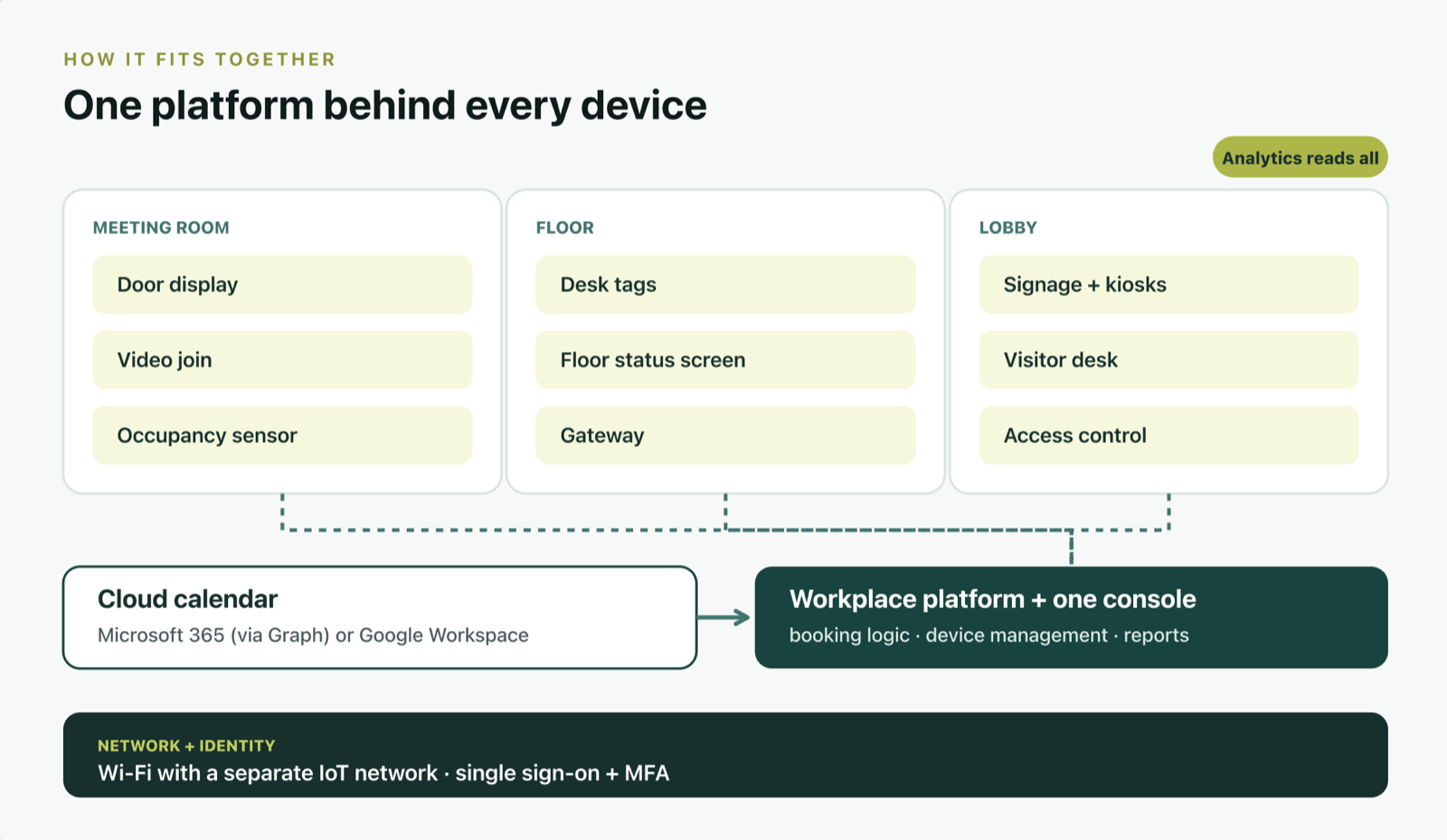
One platform behind every device
Layer 1: Foundation (items 1 to 3)
Everything else sits on these three. Skip them and every other item on the list gets harder.
1. Reliable Wi-Fi and a separate IoT network
- Priority: must have.
- Solves: dropped calls, slow screen sharing, and smart devices sitting on the same network as laptops.
- Look for: full coverage in meeting rooms, and a separate network (VLAN) for sensors, screens and gateways.
2. Single sign-on and multi-factor authentication
- Priority: must have.
- Solves: password sprawl, and every new tool becoming a new security risk.
- Look for: every workplace tool signing in through your existing identity provider, with MFA and role-based access.
3. Cloud calendar and collaboration suite
- Priority: must have.
- Solves: meetings, rooms and people living in different systems.
- Look for: Microsoft 365 or Google Workspace, with room resources set up properly. If you use Microsoft 365, make sure your tools connect through Microsoft Graph: Microsoft started switching off Exchange Web Services in Exchange Online in October 2026 and will turn it off completely in April 2027. More in what EWS retirement means for room booking.
Layer 2: Rooms (items 4 to 7)
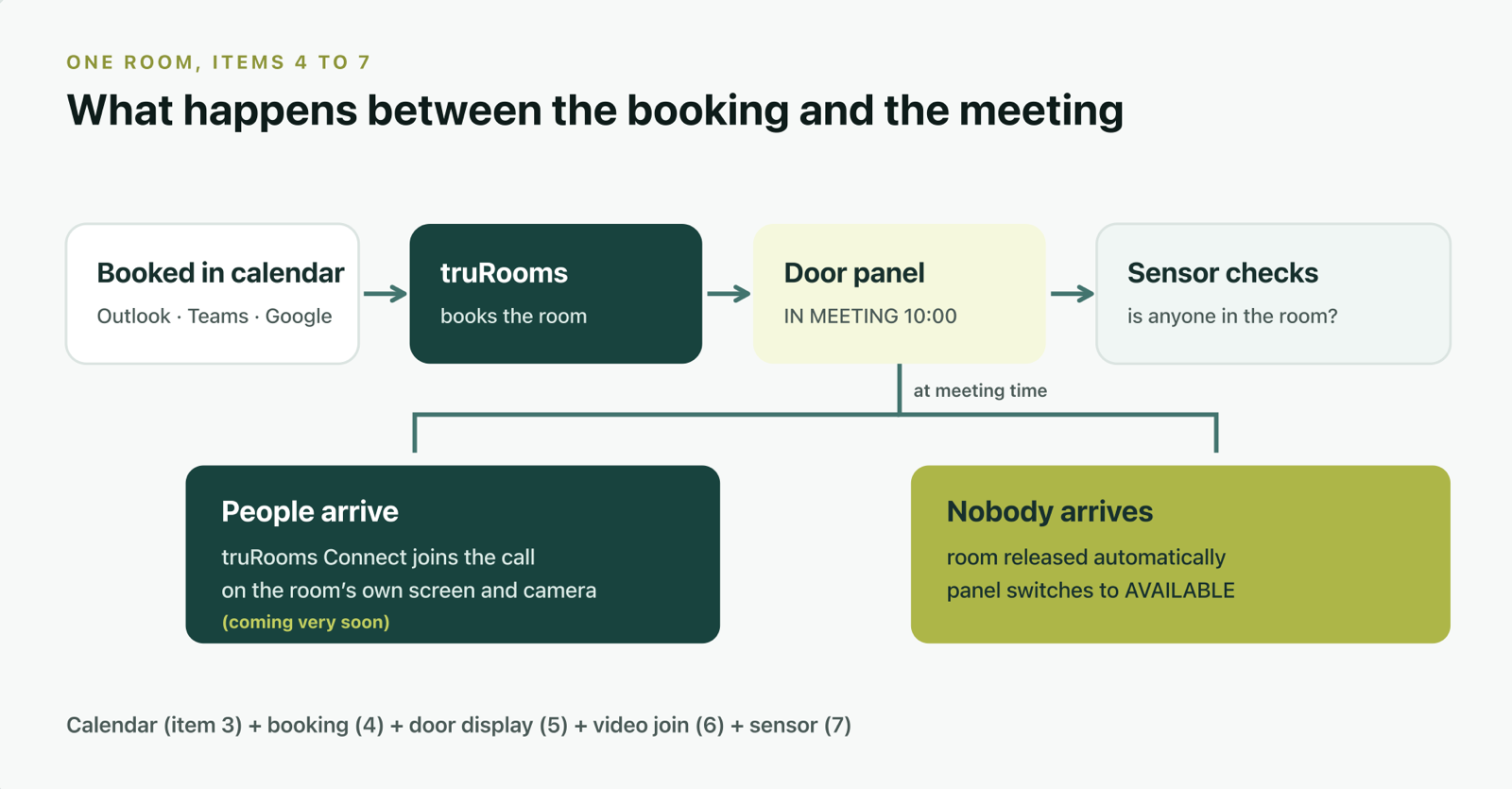
Meeting rooms are where most daily friction shows up: no free rooms, rooms booked but empty, and calls that take five minutes to start.
4. Meeting room booking inside the calendar
- Priority: must have.
- Solves: double bookings, and people walking the floor looking for a free room.
- Look for: booking from inside Outlook, Teams and Google Calendar, rooms that move when the meeting moves, and a room finder with photos, capacity and equipment. See booking a room without leaving your calendar.
5. Room displays at every door
- Priority: must have.
- Solves: knocking on doors, and the room that says booked but sits empty.
- Look for: a display at every door showing the room's status, current meeting and next booking. Ask what each panel needs at the door: powered panels need PoE or mains plus network; wireless e-paper panels need neither. The e-paper option is explained in what an e-paper meeting room scheduler is.
6. Wireless video join and screen sharing
- Priority: should have. A must for rooms used for client calls.
- Solves: the five-minute scramble for the right cable, dongle or app before every call.
- Look for: support for every meeting platform your clients use, joining from a phone or laptop, wireless screen sharing, and secure pairing so only people in the room can take control.
7. Occupancy sensors and automatic room release
- Priority: should have.
- Solves: ghost meetings, where a room is booked and nobody turns up.
- Look for: release by presence or by check-in, chosen per room. Note that Microsoft's own check-in and auto release for Teams panels is off by default. Choose sensors that detect presence without identifying people. More in ghost meetings and occupancy sensing and the DPDP Act.
Layer 3: People (items 8 to 12)
This layer is about how people move through the building: where they sit, how guests arrive, and how everyone finds their way.
8. Desk booking with desk-level display
- Priority: should have, for hybrid teams.
- Solves: arriving to find your booked desk taken, or not knowing which desks are free.
- Look for: booking from a phone or calendar, a QR on the desk to book on the spot, and the booking shown on the desk itself.
ElhiTech's Hotdesk Tags put the booking on an e-paper tag at each desk, read from the booking system you already run, with no cabling and 3+ years per tag.
9. Visitor management
- Priority: should have, especially for regulated sites.
- Solves: paper visitor books, slow reception queues and not knowing who is in the building.
- Look for: pre-registration from the meeting invite, instant host alerts, printed or digital visitor badges, and a clear record of who is on site. See five questions a paper visitor book cannot answer.
10. Digital signage from one CMS
- Priority: should have.
- Solves: stale notices, and a different tool for every screen.
- Look for: one content system for lobby screens, kiosks and e-paper labels, with templates, approvals and scheduling.
ElhiTech's ContentAI runs on Android, webOS, iOS, Windows, macOS or any browser, with AI screening before content reaches a screen.
11. Floor status screens and wayfinding
- Priority: nice to have. Essential for large campuses.
- Solves: visitors and new joiners lost between floors.
- Look for: a live view of every room on a floor, with a read-only mode that hides meeting titles on public screens.
12. Smart access control
- Priority: should have.
- Solves: lost keys, shared PINs and no record of who entered where.
- Look for: mobile or card access linked to your identity provider, and access that can be changed remotely the day someone leaves.
Layer 4: Operations (items 13 to 15)
This layer runs the office behind the scenes and proves whether the rest is working.
13. Workplace helpdesk and ticketing
- Priority: should have.
- Solves: issues reported in chat groups and forgotten.
- Look for: a QR in each room to report a problem, routing to the right team, and response times you can measure.
14. Energy, lighting and HVAC controls
- Priority: nice to have.
- Solves: lights and air conditioning running in empty rooms.
- Look for: controls that react to occupancy and bookings, and devices that draw little power themselves. E-paper displays only use power when the image changes. See the greenest panel is the one you do not replace.
15. Workplace analytics dashboard
- Priority: should have.
- Solves: deciding the floor plan on opinion instead of data.
- Look for: booked time compared with used time, per room, per floor and per team, delivered as a scheduled report.
truRooms reports room utilisation, booking patterns and adoption automatically, over daily, 7-day, 30-day or custom periods.
Where to start: impact vs effort
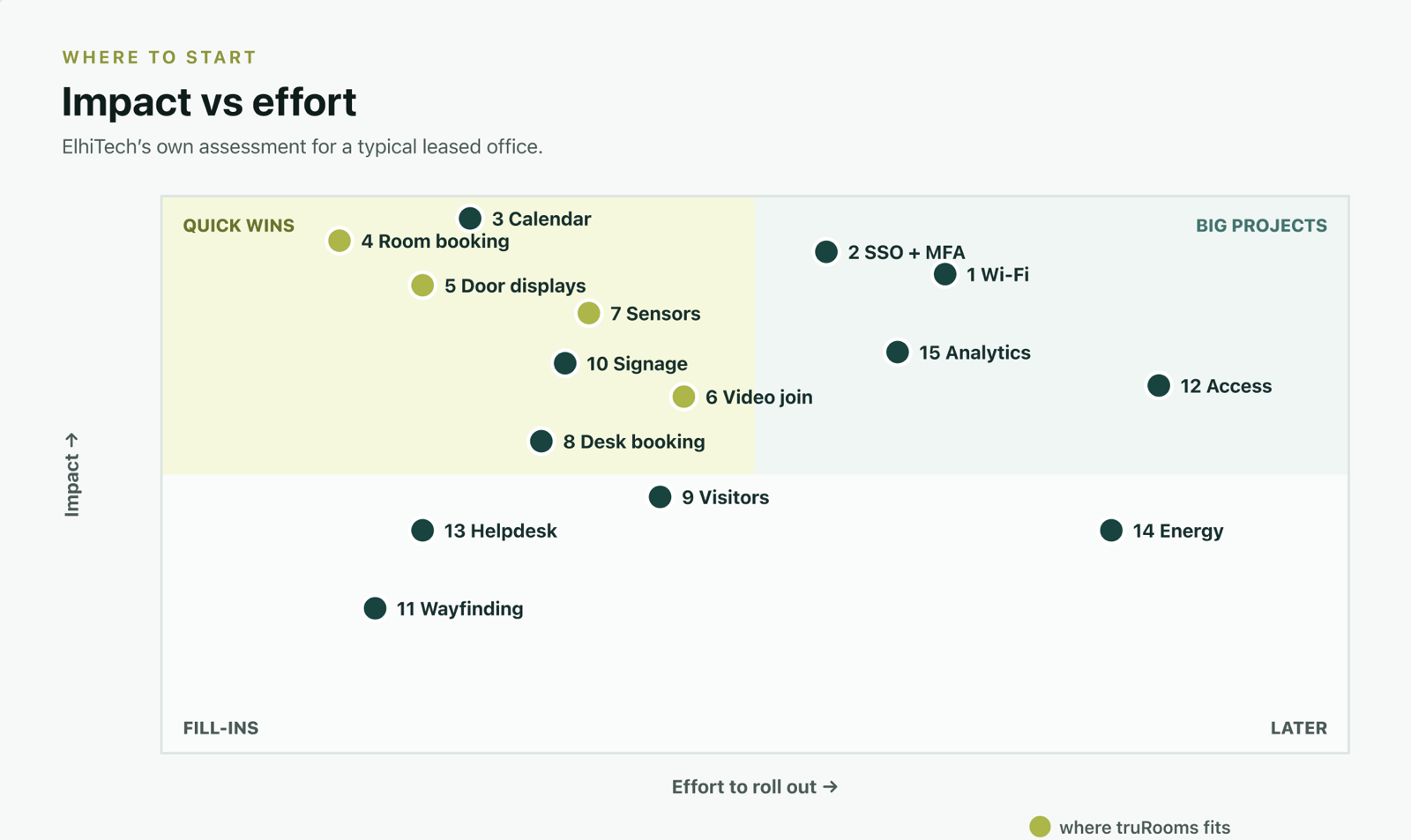
You do not need all 15 at once. Plot them by how much they help and how hard they are to roll out, and start top left.
A 90-day rollout plan
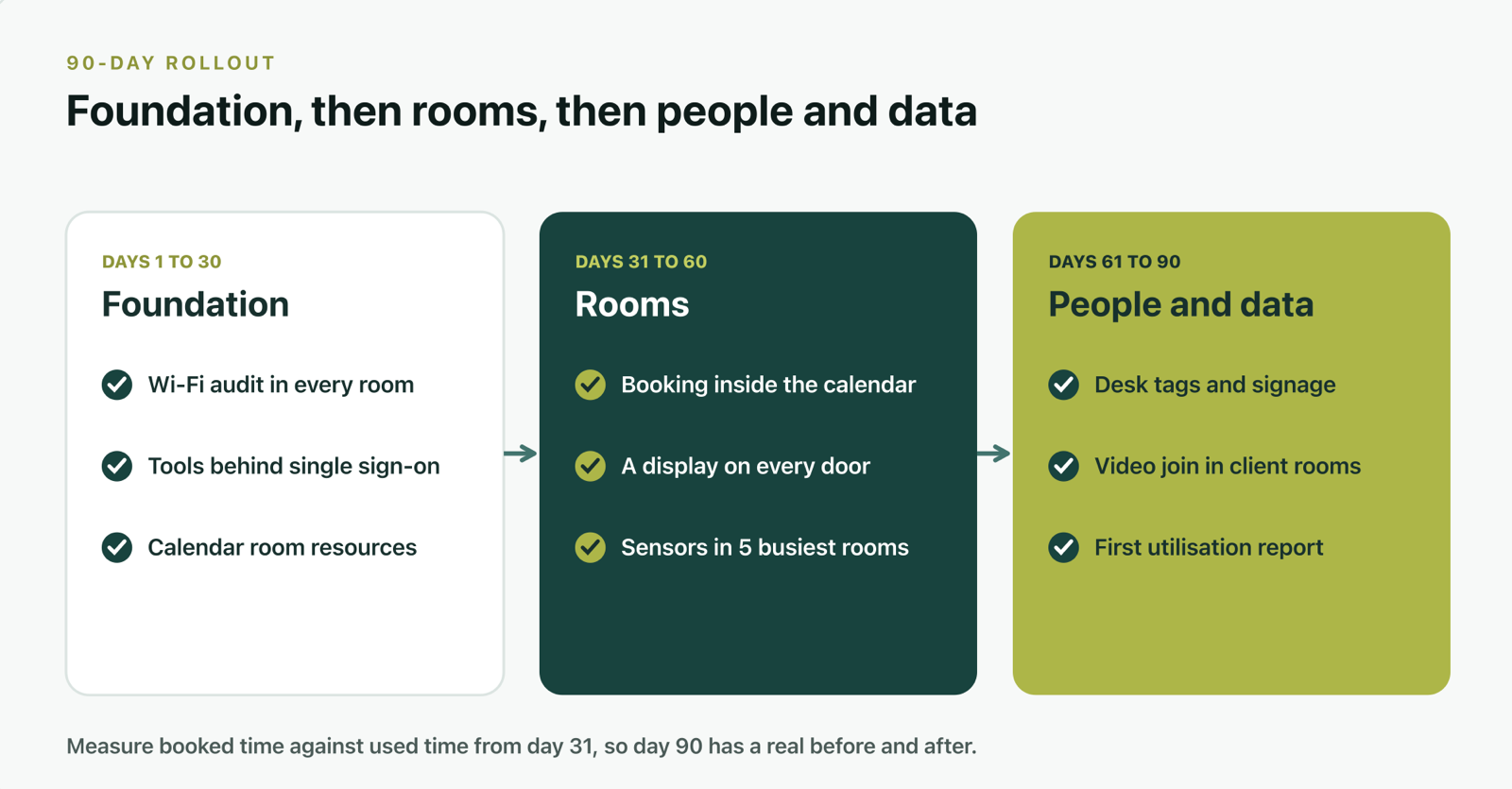
- Days 1 to 30, foundation: audit Wi-Fi in every meeting room, put all workplace tools behind single sign-on, and set up room resources in your calendar.
- Days 31 to 60, rooms: switch on calendar booking, put a display on every door, and add occupancy sensing to your busiest rooms first.
- Days 61 to 90, people and data: add desk booking and signage, then send the first monthly report of booked time against used time.
Score your office
Tick every item you already have. Then check where you land.
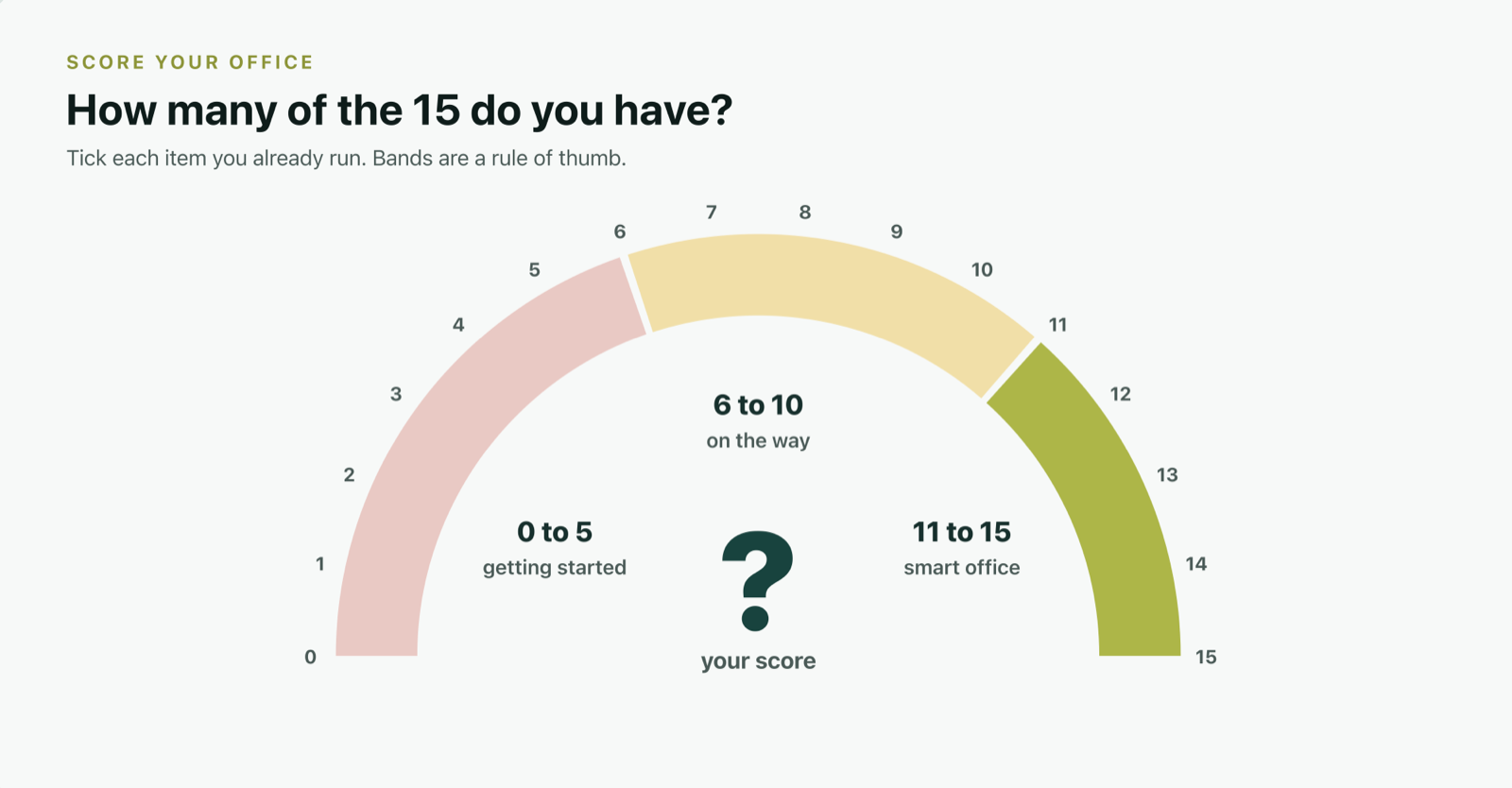
- 0 to 5: getting started. Fix the foundation and the rooms first.
- 6 to 10: on the way. Add occupancy sensing and analytics so you can measure what works.
- 11 to 15: a smart office. Now use the data to reshape the floor plan.
Mistakes to avoid
- Buying devices before the foundation. A room screen is only as good as the calendar behind it.
- A separate app for everything. Every new login lowers adoption.
- Cabling every door by default. Ask whether the screen really needs power and network before pulling cable.
- Measuring bookings, not use. Booked rooms are not the same as used rooms.
- Ignoring privacy. Under India's DPDP Rules, 2025, notified on 14 November 2025 with an 18-month window to comply, ask every vendor where data lives and what screens show in public.
A smart office is not one where everything is connected. It is one where nobody has to ask whether the room is free.
Mayand Raj
The takeaway
- Start with the foundation: Wi-Fi, single sign-on and a properly set-up calendar.
- Fix the rooms next: calendar booking, a display on every door, video join that just works, and automatic release of empty rooms.
- Then measure: compare booked time with used time before you change the floor plan.
Want to see items 4 to 7 working together on a real floor? Book a 15-minute walkthrough of truRooms and its wireless e-paper scheduler with a solution architect: calendar booking, a display on every door and automatic room release.
Frequently asked questions
What technology does a smart office need?
The core is reliable Wi-Fi, single sign-on, a cloud calendar, meeting room booking with displays at the door, wireless video join, occupancy sensors, desk booking, visitor management, digital signage, access control, a helpdesk, energy controls and a workplace analytics dashboard.
What should we add first when modernising an office?
Start with the foundation (Wi-Fi, single sign-on and calendar room resources), then meeting rooms: booking inside the calendar and a display on every door. These fix the most visible daily friction for the least effort.
Do smart room displays need wiring?
Powered LCD panels usually need PoE or mains power plus network at each door. Wireless e-paper panels run on a battery and talk to a gateway on the floor, so they need no cable at the door.
How do smart offices stop rooms being booked but unused?
By showing room status at the door and releasing bookings automatically when nobody arrives, either through check-in or presence sensors. Utilisation reports then show booked time against used time.
How can meeting rooms join Teams, Zoom and Google Meet calls?
With a platform-agnostic room system that lets people join any meeting link from a phone or laptop, using the room's existing camera, microphone and display. ElhiTech's truRooms Connect, coming very soon, works this way.
Is a smart office expensive?
It depends on the building and the order you do things in. Items like calendar booking and wireless door displays need little or no construction work, while access control and building-wide energy systems are bigger projects. Compare the total cost including installation, not just device prices.
How does India's DPDP Act affect smart office technology?
Booking systems, visitor logs and sensors can handle personal data. The DPDP Rules, 2025 were notified in November 2025 with an 18-month window to comply, so check where each vendor stores data, how long it is kept and what is shown on public screens.